

Quickstart
Get your API key, connect your agent and start authorizing requests
This guide walks you through the end-to-end flow: from setting up your project's policies to sending your first authorization request.
Prerequisites
- A Denied account (sign in here)
- An organization and active project created
Get your API Key
API keys authenticate your application when sending authorization requests to Denied.
- Open the Denied dashboard and select your project
- Go to Settings → Secrets
- Click Reveal Key and copy it (
dnd_pk_*)
Install the SDK
Integrate Denied SDK into your application to send authorization requests to Denied.
Install the plugin
openclaw plugins install @denied-dev/denied-openclaw-pluginSet your API key as an environment variable
export DENIED_API_KEY="your-api-key"Restart the gateway
openclaw gateway restartFor other OpenClaw installation options, see the full installation guide here
Install the marketplace and plugin
claude plugin marketplace add denied-dev/denied-sdk
claude plugin install denied-dev-hook
Set your API key as an environment variable
export DENIED_API_KEY="your-api-key"Restart Claude Code
claudeFor other Claude Code installation options, see the full installation guide here
In the installation process, use the API key you copied earlier.
From now on, Denied will block all requests by default. You need to create policies to allow specific actions.
Create Your First Policy
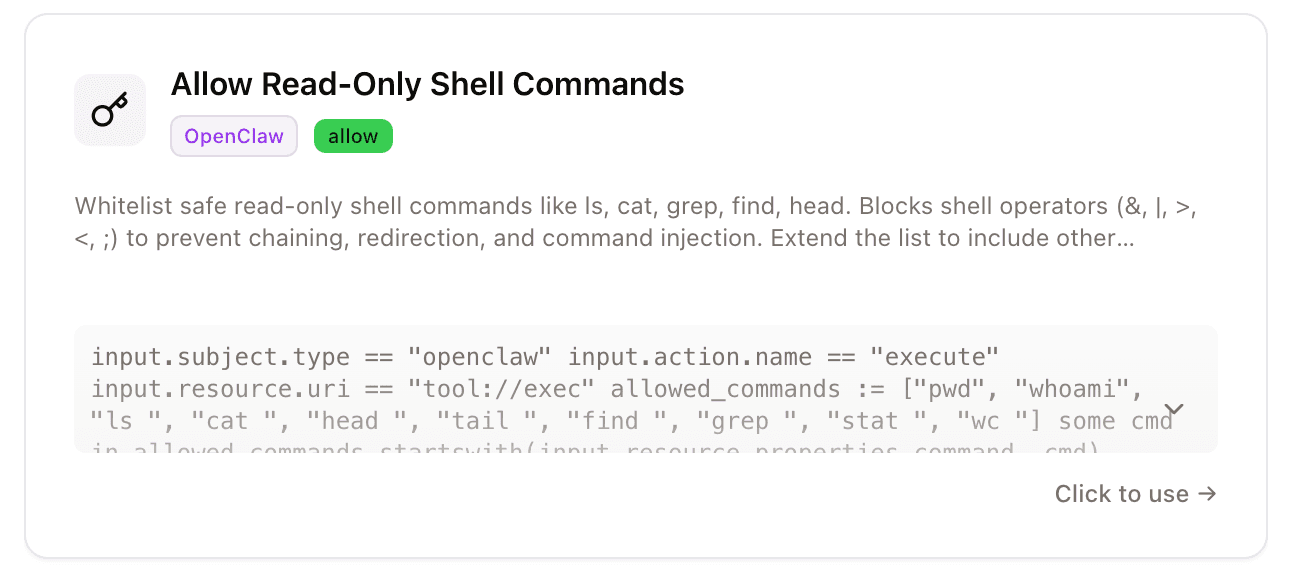
We'll create a policy from one of the available templates.
- Open the Denied dashboard and select your project
- Go to Policy Studio → Policies
- Click New Policy
- Click Start from a template and select a policy that best fits your use case
- Click Save Policy
Iterate on Your Policies
- Start using your application, it will now send authorization requests to Denied.
- Go to Monitoring → Logging to see the authorization decisions being made.
- Select a log entry to use as context for policy refinement and click Create Policy.
- Describe what to allow or deny and the AI will assist you in refining your policies as needed.
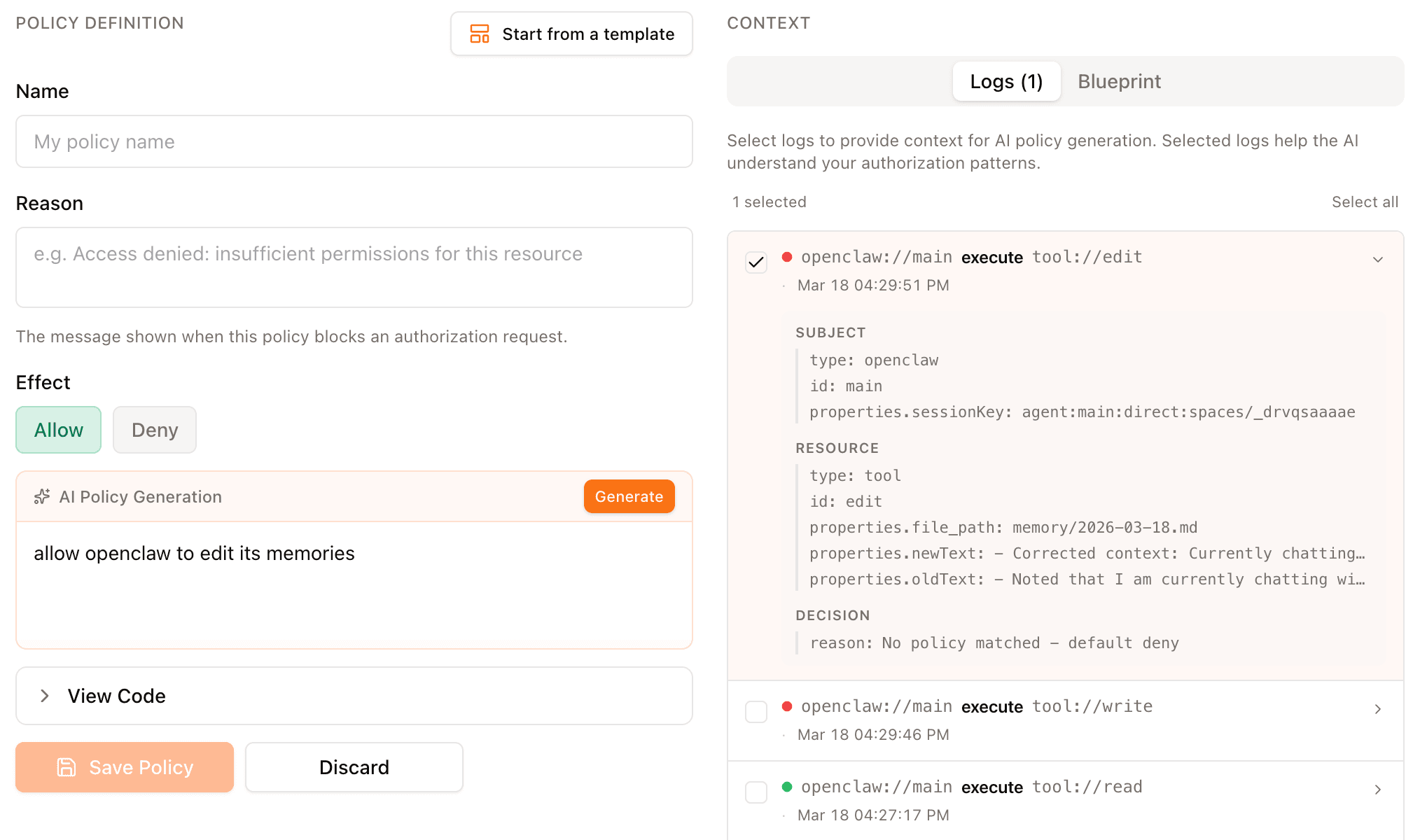
Save the policy, test your agent and continue to iterate on your policies with the same process.